
 Picture yourself getting a request on a Tuesday afternoon. A colleague needs access to the sales dashboard. You add them to the Fabric workspace as a Viewer, send the link, and consider it done. But then your lead flags it. The colleague can see the sales dashboard, but they are also able to view some financial reports, HR details, and executive summaries. The Viewer role gave them the door, and the door opened onto the whole workspace.
Picture yourself getting a request on a Tuesday afternoon. A colleague needs access to the sales dashboard. You add them to the Fabric workspace as a Viewer, send the link, and consider it done. But then your lead flags it. The colleague can see the sales dashboard, but they are also able to view some financial reports, HR details, and executive summaries. The Viewer role gave them the door, and the door opened onto the whole workspace.
Now, your lead’s request is simple: share only the sales dashboard, nothing more. This includes no other workspace accesses and accidental exposure of other reports. And this is where most people get stuck. The obvious options (adding to the workspace and hitting the Share button on the report) either show too much or show nothing at all (Direct Lake reports won’t load data unless the underlying layers are shared too).
Before jumping into the steps, it helps to understand why this happens in the first place.
The Access Layers Behind Direct Lake Reports
In a standard Power BI report, the data is imported into the model. So, when a report is shared, the data comes along with it. But Direct Lake mode works differently. Instead of importing data, the report reads it live from a Lakehouse or a Warehouse running on Microsoft Fabric. That means the report itself is just the front end; the actual data lives elsewhere, and access has to be granted separately.
So, when you share only the report, the user can open it, but they have no permission to touch the underlying data. The visuals load, find nothing, and stay blank. This is not a bug. It’s how the system works, thereby protecting your data from people who have not been explicitly granted access to it.
For a user to see a Direct Lake report properly, they need access to three things:
- Firstly, the storage layer (the Warehouse or Lakehouse where the data lives).
- Then, the Semantic Model that resides on top of it.
- Finally, the report itself.
Even if you skip any one of these, the experience breaks somewhere along the way.
One more thing worth noting: this approach works on Fabric paid capacities from F2 upward. If you’re on a Free capacity, you will need to upgrade first.
Now that the access layers are clear, let’s walk through how to share each one correctly.
Step 1: Sharing the Warehouse or Lakehouse.
Start at the foundation. Open the Fabric workspace and find the Warehouse or Lakehouse that your report pulls data from. Head into its settings.
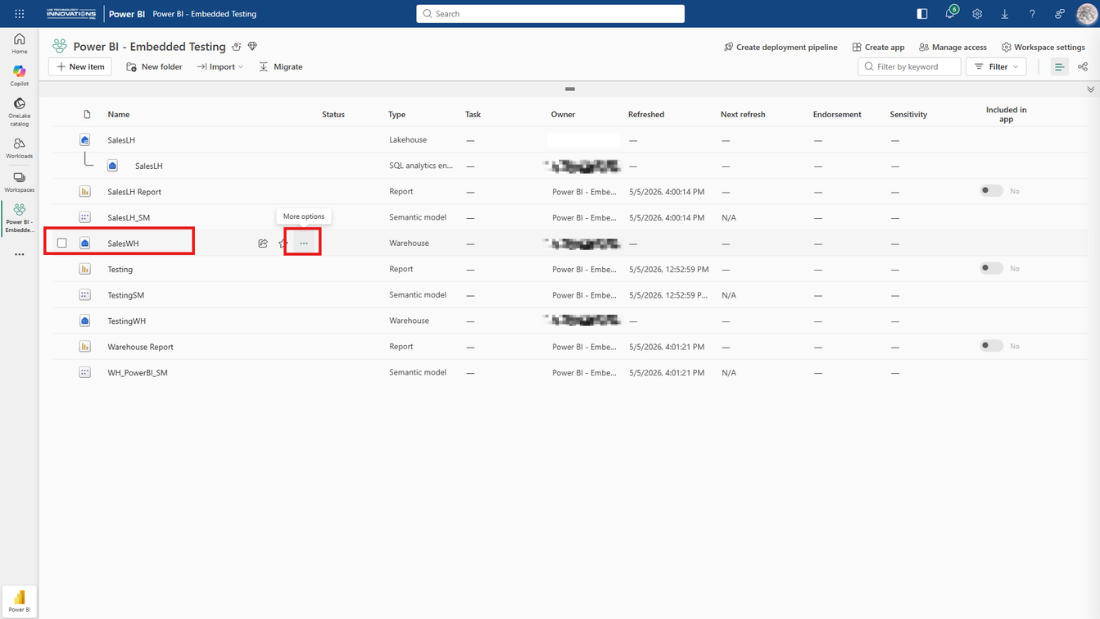
Settings panel for the Warehouse or Lakehouse
Inside settings, click on Manage Permissions. This is where you control who can access the underlying data, independently of the workspace.
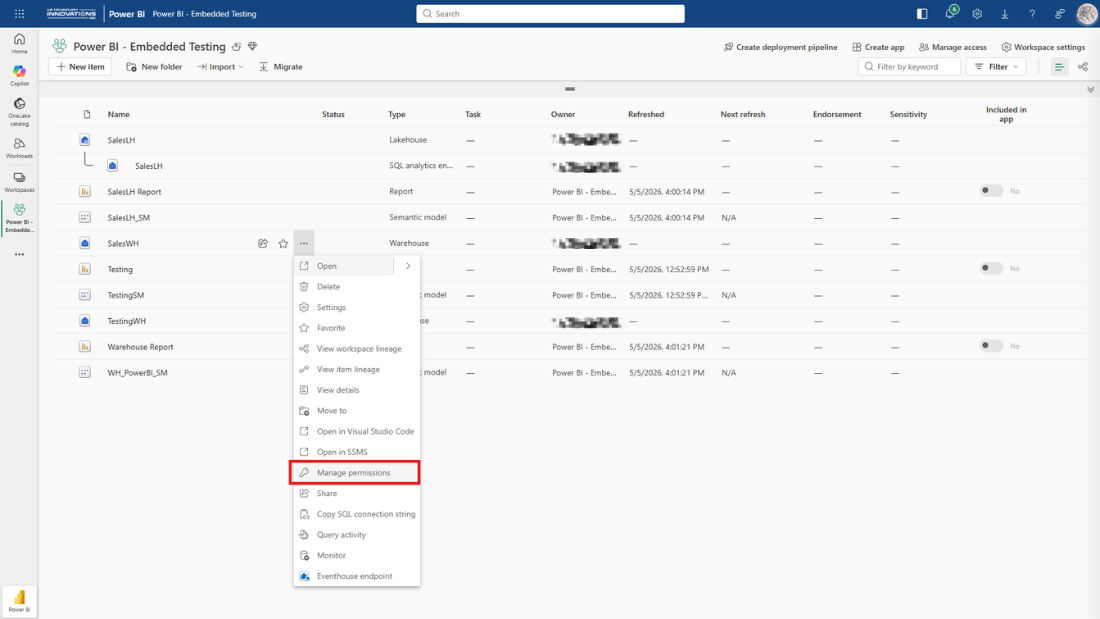
The Manage Permissions option
Click Add Users and enter the email addresses of the people you want to share with.

Adding users to the storage layer
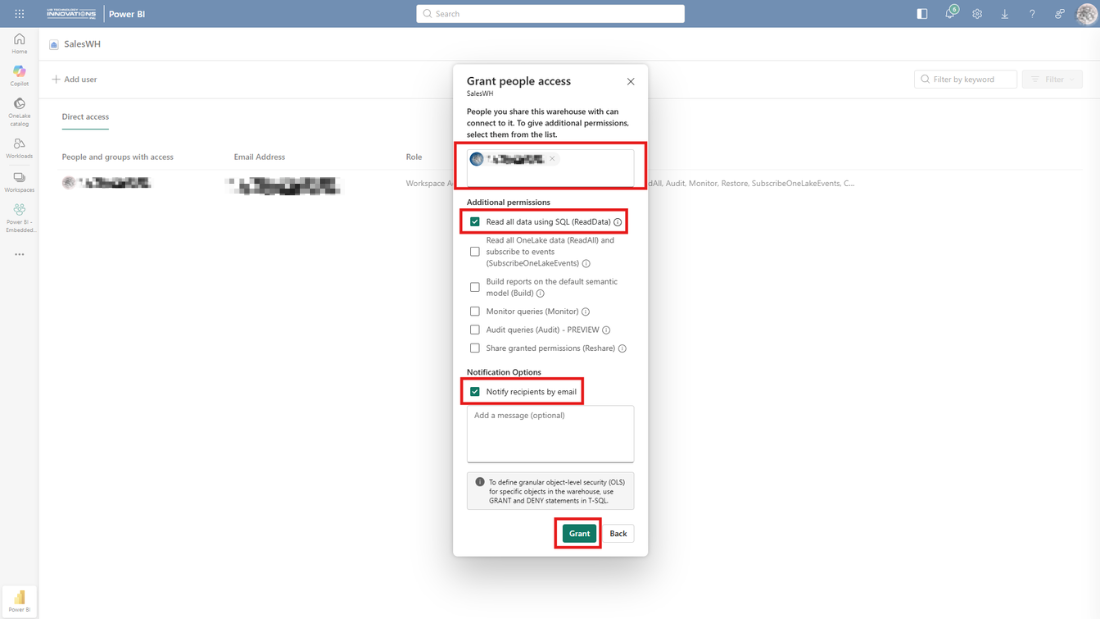
Providing access to the SQL Endpoint
Step 2: Sharing the Semantic Model.
With the storage layer sorted, move up one level to the Semantic Model. This layer translates raw warehouse data into the measures, columns, and relationships the report uses. Without access here, the data cannot flow through to the visuals.
Find the Semantic Model in the workspace and open its settings.
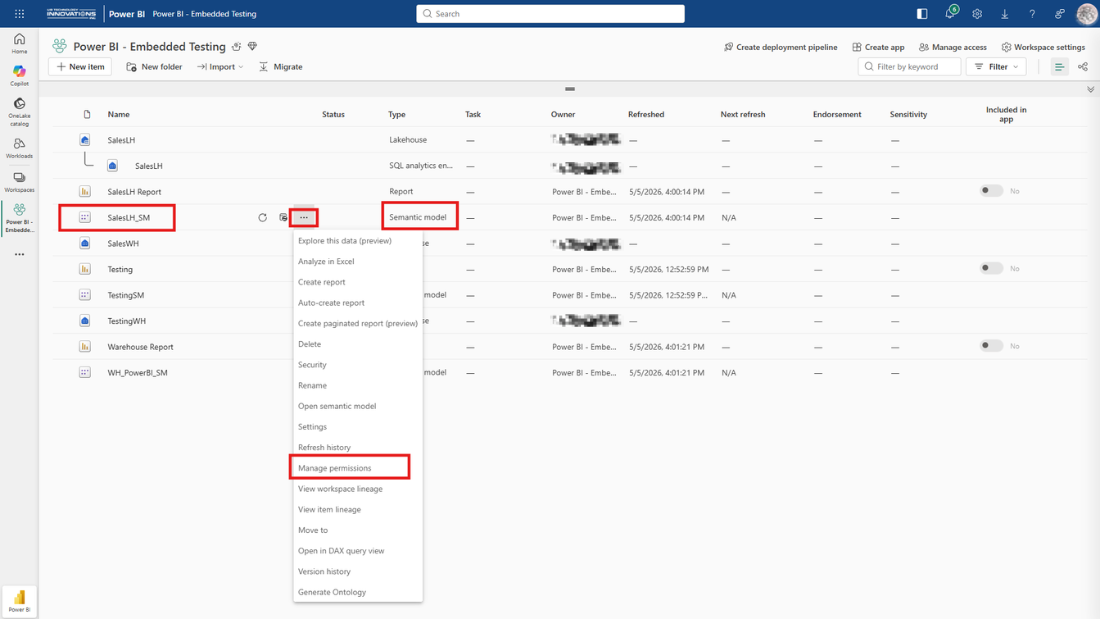
Opening the Semantic Model settings
Go to Manage Permissions, then Add User.
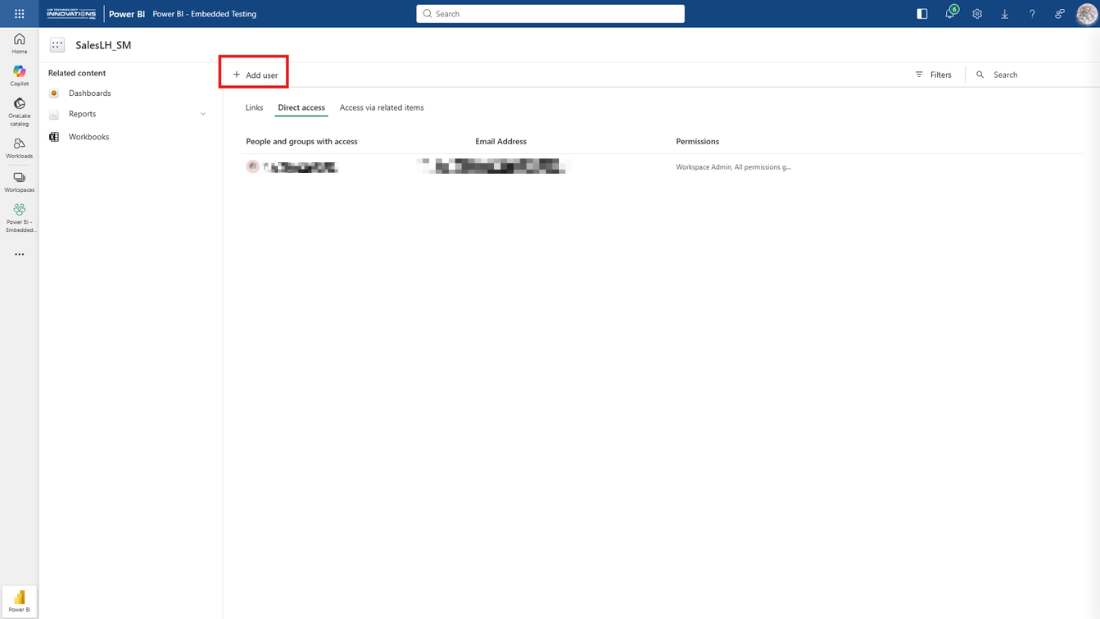
Manage Permissions for the Semantic Model
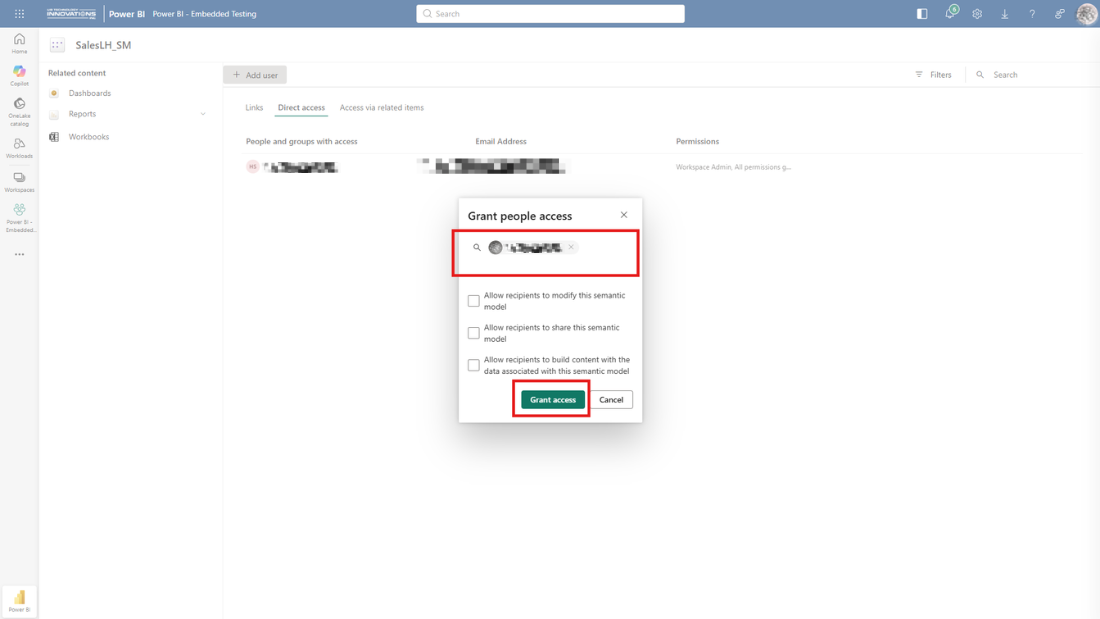
Adding users to the Semantic Model
Note that when the dialog appears, uncheck everything. By default, the Read access is already included. The other options, such as Build, Reshare, and Write, are additional permissions that most report viewers do not need. Leave them off and click Grant Access.
Step 3: Sharing the Report.
Now, and only now, share the report itself. Open it in Power BI, click the Share icon at the top, and enter the names of the people who should have access.
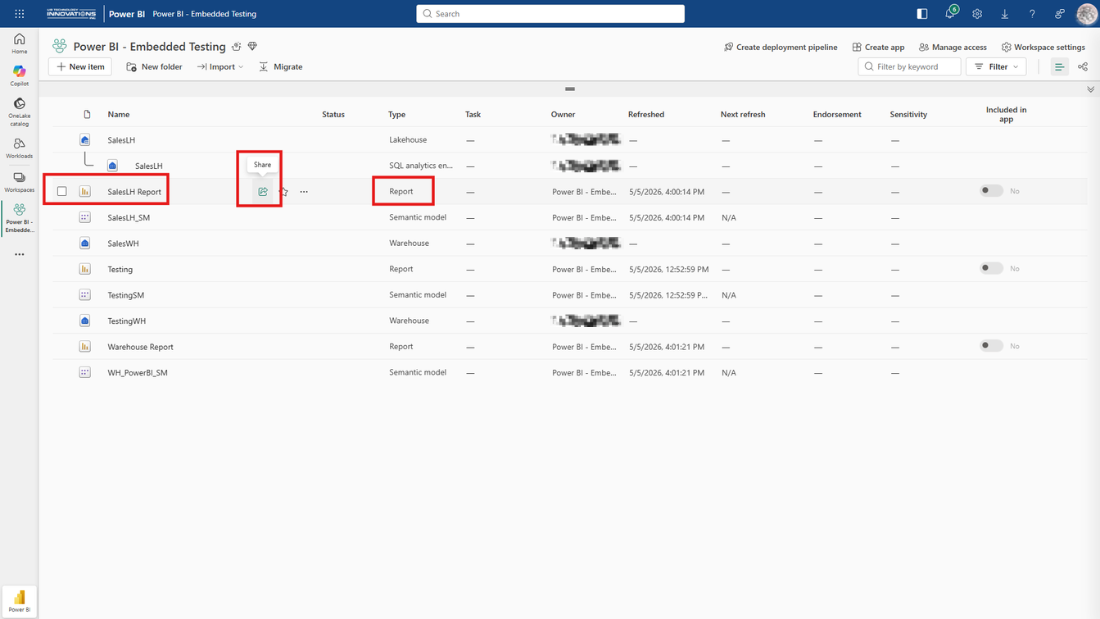
Selecting users to share the report with

Sending the report or copying the link
Click Send, and they’ll receive the link by email. If you prefer to share it via Teams or another channel, use the Copy Link option and paste it wherever you need.
The Result: Controlled Access Without Overexposure
Done right, this approach means your colleagues see exactly one report (i.e., the one you intended to share). They have no visibility into other reports in the workspace. They cannot browse datasets to which they were not given access. Hence, the workspace stays clean, your other work stays private, and the report loads with real data.
Once you’ve done it, this whole process should take just five minutes. The first time, it feels like a lot of steps, but each layer has a clear purpose:
- Storage keeps the raw data secure.
- The Semantic Model controls how that data is modeled and exposed.
- The report is just the view on top.
Granting access at each layer separately gives you precise control over who sees what, which is exactly the point.
So, next time someone asks you to share a report, you will know what that actually means.
Need help structuring secure report sharing in Power BI? Drop us a note at info@ubtiinc.com, and we’ll guide you through the steps.
Frequently Asked Questions
01. Can I restrict access to specific data within a Direct Lake report?
Yes, you can restrict access to specific data within a Direct Lake report by applying row-level security (RLS) in the semantic model. This ensures users only see data relevant to their role or region. It works on top of the access layers you’ve already configured.
02. Can I automate this access-sharing process?
Yes, the access-sharing process can be automated, especially for larger teams or when there are frequent changes. You can use APIs, scripts, or governance tools to manage access. This reduces manual effort and avoids missed permissions.
03. Can users download data from a shared Direct Lake report?
Users can download data from a shared Direct Lake report only if you allow it through report or model settings. Download options can be restricted based on your needs. Control this carefully to avoid unwanted data exposure.
04. How do I audit who has access to which layer?
Check Manage Permissions in each layer separately (Warehouse/Lakehouse, Semantic Model, and Report) to see exact user access. For broader tracking, use Microsoft Fabric audit logs in the admin portal to monitor who accessed or modified items. For ongoing control, assign access through security groups so you can review and update permissions in one place.
05. What happens if I remove access from one of the layers later?
If you later remove access to one of the layers, the report will stop working correctly for that user. Depending on the layer removed, they may see blank visuals or errors. Access needs to remain consistent across all layers.