
 Many organizations start using Power Apps to build internal tools like forms, approvals, and day-to-day workflows. It fits these needs well, which is why adoption often spreads quickly across teams. As the number of apps grows, the focus naturally shifts from just building quickly to ensuring each application stays consistent and easy to manage over time.
Many organizations start using Power Apps to build internal tools like forms, approvals, and day-to-day workflows. It fits these needs well, which is why adoption often spreads quickly across teams. As the number of apps grows, the focus naturally shifts from just building quickly to ensuring each application stays consistent and easy to manage over time.
This is where a more thoughtful approach to Power Apps implementation makes a difference. Instead of treating each app as a separate project, there’s a need to build systems that can scale across departments.
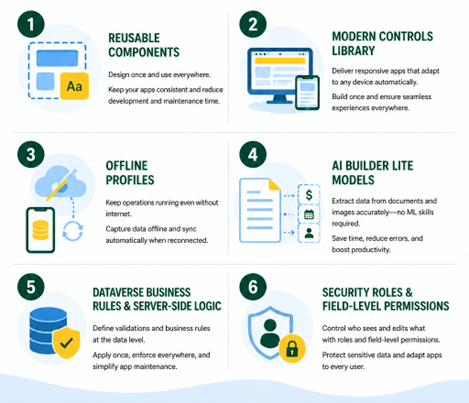
That said, several features are already available in Microsoft Power Apps but are not always used to their full potential. When applied correctly, they help improve structure, reduce redundant development effort, and support smoother business operations. Let’s look at six such features.
Feature #1: Reusable Components
Certain elements repeat, such as headers, menus, validation blocks, and even simple UI patterns like buttons and date pickers. Microsoft Power Apps allows you to package these into reusable components. Simply put, you design it once and use it across multiple apps. This not only saves dev time but also directly affects how your apps feel to end users. When layouts and behaviors stay consistent, users don’t have to relearn the interface every time they open a different app.
There’s also a maintenance angle here. If a validation rule or UI element needs to change, updating the component once is enough. Without this, teams end up editing the same logic in multiple places. You’ll notice the value more clearly when:
- Multiple applications need to be rolled out quickly using pre-defined templates.
- UI changes (like branding updates) must be applied across apps.
- Common logic, such as approval conditions or validations, needs to stay consistent.
- Multiple teams are building apps but still need to follow the same structure.
Among the most practical Power Apps services benefits, reusable components show impact quite early, especially as the number of apps increases.
Feature #2: Modern Controls Library
Power Apps for enterprises still rely on older controls because they were initially built that way. While they still function, they often need manual adjustments to look right on different devices. The modern controls library addresses this directly. These controls are designed to be responsive, which means the application adjusts automatically based on screen size.
Whether someone opens the app on a phone, tablet, or desktop, the layout remains usable without extra fixes. This reduces the need for patchwork changes later. It also improves how the app looks and feels, which matters more than most teams initially expect. If the goal is to build business applications that can be used across teams without friction, this is a simple but essential step toward building the best Power Apps for enterprise scenarios.
Feature #3: Offline Profiles
Not every business environment operates with stable connectivity. In those cases, applications that depend entirely on real-time internet access can slow down operations. Power Apps addresses this with offline profiles. These profiles define what data should be stored locally on the device and how it syncs back when the connection is restored. This means the app is designed to function even when the network is unavailable.
To understand where this helps most, consider situations like:
- Field inspections where teams need to record observations on-site.
- Warehouse operations where connectivity may drop in certain zones.
- Maintenance tasks in plants where real-time access is not always reliable.
Once connectivity is restored, the app syncs everything automatically in the background, without requiring any user action.
Feature #4: AI Builder Lite Models (Document and Image Processing)
Data entry from documents is a common part of many workflows. It is also one of the most time-consuming and error-prone steps. AI Builder Lite models allow apps to read data from documents and images. For example, scanning an invoice and extracting details like amount, date, or vendor name. The important part is that this does not require a technical background in machine learning. The models are pre-built and can be configured in a few simple steps. This reduces manual typing while improving accuracy.
In day-to-day operations, this can save significant effort, especially when dealing with repetitive tasks. It is one of those Power Apps capabilities that often gets overlooked but delivers clear value when used correctly.
Feature #5: Dataverse Business Rules and Server-Side Logic
As apps grow, managing logic inside each app becomes difficult to track and update. Dataverse, the underlying data platform in Power Apps, allows you to define business rules at the data level rather than within individual apps. These rules can control validations, field behavior, and conditions. For instance, making a field mandatory only when a certain value is selected. Once defined, these rules apply across all apps connected to that data. This avoids duplication of logic. It also ensures that every app follows the same rules without extra effort.
In modern Power Apps solution consulting engagements, this is a common shift – moving logic out of apps and into a centralized layer to improve consistency and reduce maintenance.
Feature #6: Security Roles and Field-Level Permissions
Different users need different levels of access. That’s a basic requirement in most applications. For that, Power Apps supports role-based access control (RBAC), where each role defines what a user can see or edit. On top of that, field-level permissions allow control over specific fields within a form.
Instead of creating multiple apps for different roles, a single app can adapt to the user. This keeps things simpler from a management perspective. It also ensures that sensitive data is accessible only to authorized users. When aligned with enterprise Power Apps licensing, this setup helps organizations manage access properly without adding unnecessary complexity.
Conclusion: What You Can Do Next
If you already have Power Apps in place, it’s worth reviewing how your current apps are structured:
- Look for areas where the same logic is repeated, where layouts differ across apps, or where manual steps still exist.
- Instead of making large changes, start with one improvement.
- Apply it to a single app and observe how it affects usability or maintenance.
- Once you see the impact, the same approach can be extended to other apps.
Over time, these changes help move from basic app usage to a more standardized and scalable use of Power Apps across business functions.
And in case you’re planning to expand or refine your setup, taking the right approach early helps avoid unnecessary rework later. If you need support in building new applications or improving existing ones, our Microsoft-certified Power Apps specialists will assist you.
Frequently Asked Questions
01. What are the common features of Power Apps?
From a leadership standpoint, the real value of Power Apps lies in its Low-Code/No-Code approach, which enables your teams to build apps without relying heavily on IT. Along with that, features like Copilot AI, data integration, and workflow automation help speed up app creation by turning simple instructions into working logic and screens.
02. How do we measure the ROI of these changes in a way that is meaningful for leadership?
ROI should be tied to outcomes such as reduced process time, fewer errors, and faster operational execution after Power Apps implementation. Instead of tracking usage, focus on how many man hours are saved per workflow and then translate those time savings into cost and productivity gains. This is where Power Apps services’ benefits become visible at a business level.
03. How do we maintain uniform security settings when multiple teams are building and updating apps?
Uniform security starts with implementing role-based access controls and defining permissions at the Dataverse level, so every app follows the same rules by default. Instead of managing access inside each app, centralize it to avoid inconsistencies as more teams get involved. Also, enforce environment-level governance policies and use managed solutions to control how changes are deployed.
04. Is there any risk in rolling out improvements to many apps at once?
Yes, from an enterprise perspective, rolling out changes across multiple apps at once can create operational risks if something does not work as expected. An ideal way is to test improvements in one or two critical apps, validate the outcome, and then expand gradually. This controlled rollout works well in environments where Power Apps for enterprises supports multiple business-critical processes.
05. How do we make sure Low-Code/No-Code apps follow the same standards as our custom-built ones?
Consistency starts with leadership teams defining clear standards for design, data, and security during Power Apps implementation. These standards should be enforced using reusable components and centralized rules. With enterprise Power Apps licensing, this ensures that every app (whether Low-Code/No-Code or custom-built) meets the same quality and compliance requirements.